Starting a new tool can feel overwhelming. Where do you click? What do all the buttons do? Most users don't read documentation — they explore and learn by doing.
We've added an interactive product tour that guides new users through EasyRoadmap's key features in under a minute. No reading required — just follow the highlights.
What the tour covers
The tour walks through the most important parts of the interface in a logical order:
Welcome screen
A friendly intro that tells new users what to expect — just 1 minute to learn the basics.
Editable title
Click-to-edit roadmap name. This is what shows up in shared links and the browser tab.
View switcher
Timeline for planning, Board for execution tracking, List for fast editing. The tour explains when to use each.
Workspace status
Shows whether your work is saved. Cloud sync, local storage, or file — always visible.
Quick actions
Load, Save, Share, and New workspace buttons. The tour shows where they are so new users don't have to hunt.
Zoom controls
Timeline granularity: Overview → Year → Plan → Detail. The tour explains what each level shows.
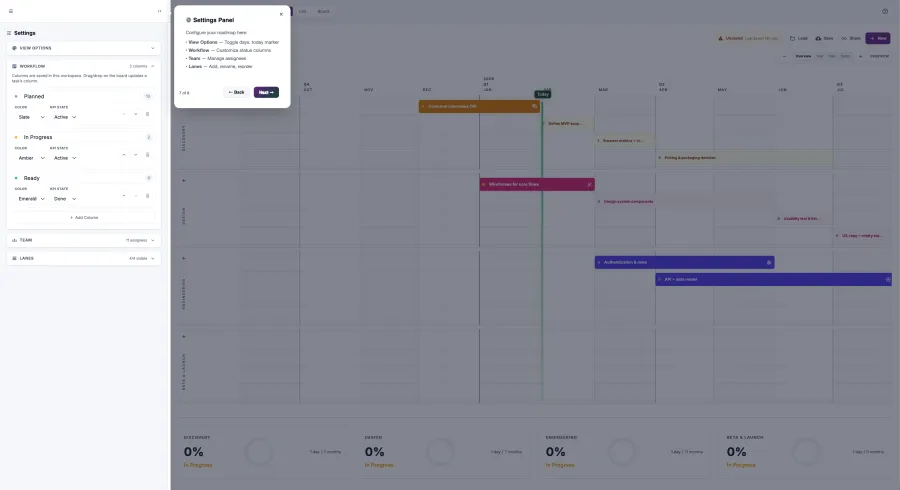
Settings panel
The tour opens the settings panel automatically so users can see View Options, Workflow, Team, and Lanes.
Add task button
How to create new cards. The tour highlights the + button in each lane.
Why guided tours work
No manual required
New users can start productive work in under a minute. The tour teaches by showing, not telling.
Non-intrusive
The tour only runs once for new users. A help button in the top bar lets anyone replay it later.
Focused highlights
Each step spotlights one UI element at a time. No walls of text, no overwhelming overlays.
Interactive panels
The settings panel actually opens during the tour — users see real UI, not just screenshots.
Built with driver.js
The tour is powered by driver.js, a lightweight library for creating step-by-step product tours. It handles:
- Smooth highlighting — elements are spotlit with a semi-transparent overlay
- Smart positioning — popovers automatically adjust to stay on screen
- Keyboard navigation — arrow keys and Tab work out of the box
- Progress tracking — shows "Step 3 of 9" so users know what's left
We customized the styling to match EasyRoadmap's design system — gradient buttons, rounded corners, and proper dark mode support.
How to access the tour
The tour automatically starts for new users who haven't seen it before. If you want to replay it:
- Click the help icon (?) in the top-right corner of the app
- Select "Start Product Tour" from the dropdown
- Follow the highlighted steps
The help menu also links to documentation, the blog, and the changelog — so users can always find more information when they need it.
Try it yourself
Open the app and look for the help button in the top bar. The tour takes about a minute and covers everything you need to start building a roadmap.